


This post is also available in:
 Português (Portuguese (Brazil))
When starting the Oracle Grid Infrastructure 19c installation on servers running Red Hat Enterprise Linux 8 (or Oracle Linux 8, CentOS 8, Rocky Linux 8), the installer may fail immediately with the following error:
[WARNING] [INS-08101] Unexpected error while executing the action at state: 'supportedOSCheck'.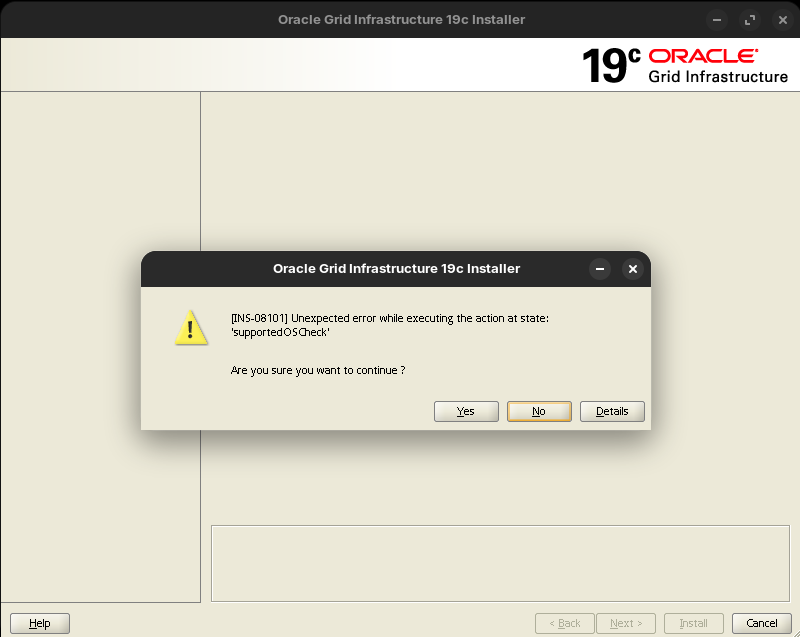
The installer simply stops. It doesn’t get to validate SSH, NTP, disk, or network- it gets stuck on the very first check: the operating system.
In this article, I’ll explain why this error occurs, how it relates to Oracle’s certification matrix, and walk through both the quick workaround and the recommended production fix.
💡 In practice: This error happens because the base version of Grid Infrastructure 19c (19.3) was released before RHEL 8 was officially certified. The installer doesn’t recognize the distribution and blocks the execution. The correct fix is to apply a Release Update during installation.
Why the INS-08101 Error Occurs
The Oracle Universal Installer (OUI) runs an operating system check called supportedOSCheck at the very beginning of the installation. This check queries an internal list of certified distributions and versions.
If the server’s OS is not on the list, the installer aborts with the INS-08101 error.
The problem with RHEL 8 and Oracle 19c
Grid Infrastructure 19c base version (19.3.0.0) was released in January 2019. Red Hat Enterprise Linux 8 was released in May 2019– months later.
Result: the base installer doesn’t know about RHEL 8 and doesn’t recognize it as a supported OS. The same applies to:
- Oracle Linux 8
- CentOS 8
- Rocky Linux 8
- AlmaLinux 8
Oracle added RHEL 8 support in later Release Updates (starting from RU 19.5 onwards). But if you’re installing from the base 19.3 image without applying any patches, the error will appear.
Solution 1: Quick Workaround with CV_ASSUME_DISTID
This is the fastest way to bypass the error. You force the installer to treat the OS as Oracle Enterprise Linux 7.8, skipping the distribution check.
Before starting the installer, export the variable:
export CV_ASSUME_DISTID=OEL7.8Then start the installer normally:
./gridSetup.shThe INS-08101 error should no longer appear.
⚠ Warning: This workaround is not recommended for production. You’re essentially tricking the installer into accepting an OS that the base version wasn’t tested against. It may work, but you lose Oracle’s certification guarantee. If you open an SR with Oracle Support, they may question the configuration.
When to use the workaround
- Lab/staging environments where you need to get up and running quickly
- Tests and POCs that won’t go to production
- Emergency situations where applying the RU isn’t feasible at the moment
Solution 2: Install with a Release Update (Recommended for Production)
The correct approach is to apply a Release Update (RU) that already includes RHEL 8 support during the Grid Infrastructure installation itself.
Step 1- Download the Release Update
Access My Oracle Support (MOS) and download the desired RU. Oracle releases RUs quarterly.
Example with RU 19.15 (Patch 33803476):
# Create staging directory
mkdir -p /u01/stage

# Extract the patch
cd /u01/stage
unzip p33803476_190000_Linux-x86-64.zipNote: Always use the latest available RU. The newer it is, the more fixes and supported operating systems it includes.
Step 2- Update OPatch
Before running the installer with -applyRU, you need to ensure OPatch is at a version compatible with the Release Update. The OPatch that ships with the base 19.3 image is usually too old to apply recent RUs- if not updated, the installation will fail.
Download the latest OPatch version from MOS (Patch 6880880) and apply it:
# Backup the current OPatch
mv $GRID_HOME/OPatch $GRID_HOME/OPatch.bkp

# Extract the new OPatch
unzip p6880880_190000_Linux-x86-64.zip -d $GRID_HOME/

# Verify the version
$GRID_HOME/OPatch/opatch versionTip: Always check the “Prerequisites” section of the RU’s README. It specifies the minimum OPatch version required.
Step 3- Install with the -applyRU parameter
With OPatch updated and the RU available in the staging directory, run the installer:
./gridSetup.sh -applyRU /u01/stage/33803476The installer will:
- Recognize the OS correctly (because the RU includes the certification)
- Install Grid Infrastructure
- Apply the Release Update automatically
All in a single run- no workarounds needed.
Step 4- Validate the installed version
After installation, confirm the RU was applied:
$GRID_HOME/OPatch/opatch lspatchesIt should list the RU patch number that was applied.
How to Check the Certification Matrix
Before any installation, verify that the Oracle version + OS version combination is certified:
- Access the Oracle Certification Matrix
- Or in MOS: Doc ID 2552723.1– Oracle Database and Grid Infrastructure Supported Releases and Platforms
This prevents surprises during installation and ensures Oracle Support coverage if you need to open an SR.
Pre-Installation Checklist
bash
# 1. Check OS version
cat /etc/redhat-release

# 2. Verify the RU is available in the staging directory
ls -la /u01/stage/

# 3. Check OPatch version
$GRID_HOME/OPatch/opatch version

# 4. Update OPatch
mv $GRID_HOME/OPatch $GRID_HOME/OPatch.bkp
unzip p6880880_190000_Linux-x86-64.zip -d $GRID_HOME/
$GRID_HOME/OPatch/opatch version

# 5. Install with -applyRU (production)
./gridSetup.sh -applyRU /u01/stage/<PATCH_NUMBER>

# OR workaround (lab/staging only)
export CV_ASSUME_DISTID=OEL7.8
./gridSetup.shConclusion
The INS-08101 error at supportedOSCheck is a common roadblock when installing Oracle Grid Infrastructure 19c on newer Linux distributions like RHEL 8, OL 8, and Rocky Linux 8.
The cause is straightforward: the base installer version (19.3) was released before these distributions were certified.
There are two approaches:
- Quick workaround (
CV_ASSUME_DISTID=OEL7.8)- bypasses the error but is not recommended for production - Definitive solution (
-applyRU)- applies the Release Update during installation, ensuring official support and certification
For production environments, always use Solution 2. This guarantees you’re on a certified and supported configuration.